I like having a selection of cartographic backgrounds for my PC desktop, and so I devised a simple way of exporting map sections at suitable resolutions.
- Download this zip file.
- Copy the xts files into the CC3 \System\Export\Settings folder, and the wallpaper export.fsc file into CC3 \Symbols\Other folder.
- Look up your desktop resolution (Start menu >> Control Panel >> Adjust Resolution)
- Launch CC3 and open the map you want to make into wallpaper.
- Select Tools >> Options BMP, JPG, PNG and pull down the settings. They start “Wallpaper”. Choose yours and note the aspect ratio (eg 16 to 9)
I’ve covered about 90% of screen resolutions. If yours isn’t listed, it’s easy to add your own.
- Open the Wallpaper Export catalog and choose the symbol which matches your display’s aspect ratio.
- The symbol is probably bigger than your drawing – hold SHIFT and move the mouse until it’s the right size and place it where you want to make your wallpaper.
- Right click the Save As button and select Export Rectangular Section
- The prompt reads “Select first corner”
- Zoom Window into the top left corner of the symbol and choose a point just inside the rectangular symbol.
- Zoom Extents, then Zoom Window to the lower right corner and choose a point just inside the rectangular symbol.
- Select a file location for your wallpaper.
The new wallpaper will open in your raster editor, if you have one.
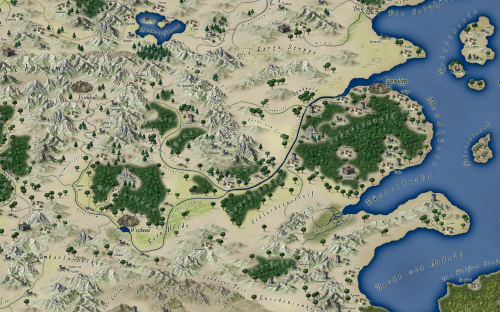
Here are some high resolution examples I exported for different ratios.


Only now i had saw it. Thank you for the tutorial and archives.
Also I could not follow step 6. Where is this Wallpaprer Export?
@Mateus, if you downloaded and installed the zip file, you should see it in the CC3 \Symbols\Other folder
Thank you.
Now I found it =)